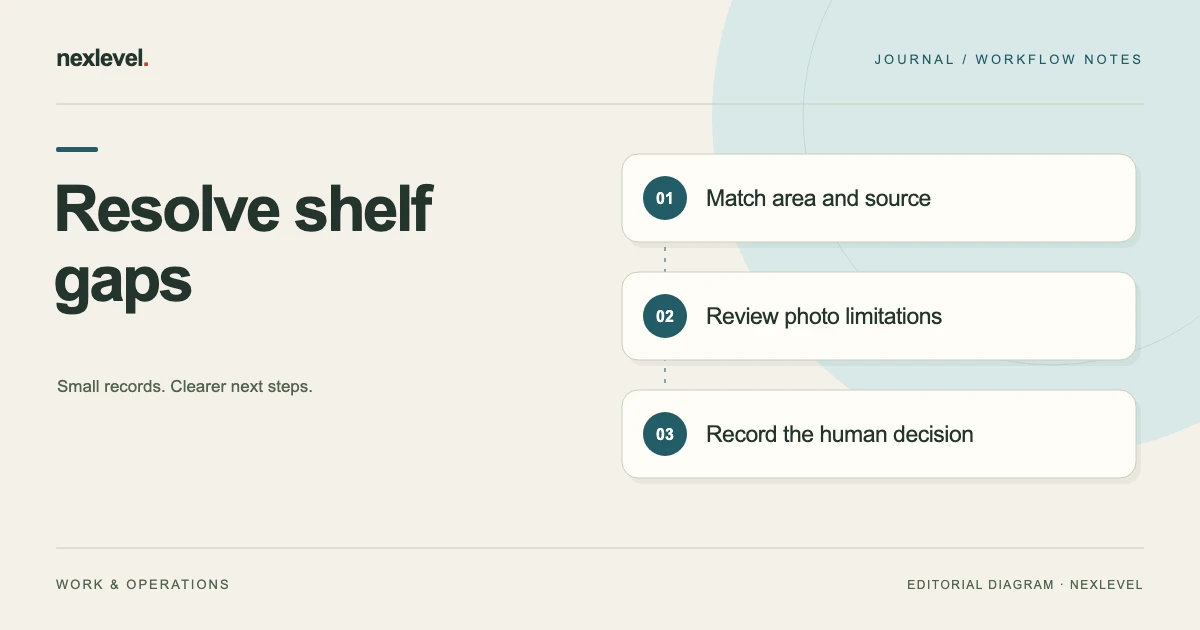
When a shelf photo and entered count disagree, first check that they describe the same area, occasion and count definition. A crop, overlap or older image may explain the mismatch; an incomplete view cannot establish the missing quantity.
Check the source relationship before correcting the number
- Identify the audit, selected area, count definition and applicable planogram.
- Open the images and note boundaries, overlap and capture occasions.
- Separate an established entry error from an evidence gap or later observation.
- Record the supported reviewer decision and inspect the resulting finding before export.
Working fields:
Audit/finding | Area/count definition | Entered count | Photo/occasion | Boundary or overlap | Decision | Unresolved question
Useful next steps: Set up shelf audit fields, Hand off the finding with its evidence, Review an optional AI draft against local sources.
Define what the count is supposed to describe
Write the actual review question. Is the recorded count describing a selected visible area, an entered expectation, or something else? A number should not change meaning between the source and summary.
Use the terminology authorized for the actual audit. Do not assume two short labels refer to the same thing merely because both contain a product name. The selected shelf area and intended observation need to be identifiable.
This guide does not supply a universal merchandising measurement rule. Its worksheet asks the reviewer to preserve the rule or definition actually used and the source that establishes it.
Once the question is bounded, a discrepancy can be reviewed without making unsupported claims about stock behind the photographed area or the condition of an entire store.
Match the approved planogram and its version
A current photo compared with the wrong planogram can produce a convincing-looking but irrelevant discrepancy. Identify the actual approved source and selected version before reviewing the finding.
PlanoVerity’s current listing describes importing an approved planogram PDF. The software does not establish approval merely because a file was imported. Keep the actual authorization and source relationship in the responsible process.
If two retained PDFs have similar names, open the files and verify their contents. A filename ending in “final” is not enough to establish which version applies to the selected audit.
The independent worksheet can retain the planogram reference and selected area. These are review practices, not a promise of automatic retailer-version verification.
Check the photo’s scope before its apparent count
Open the actual image and identify the area it covers. A cropped edge, obscured item, or incomplete view can limit what the picture establishes. The reviewer should describe that limitation rather than fill the gap with a guessed count.
A wide image and a close-up may represent the same area at different detail levels. They are not automatically two separate observations. Identify the relationship before adding their apparent counts together.
Check whether the images belong to the same audit occasion. A retained earlier photo can be useful context without establishing the current condition.
The listing describes up to eight shelf photos per audit. Select evidence appropriate to the task rather than assuming that filling every available image slot makes the audit more authoritative.
Use a discrepancy worksheet
Suggested fields include audit reference, planogram reference, selected area, photo reference, occasion, count definition, entered count, visible limitation, suggested finding, reviewer decision, and unresolved source question.
| Relationship to check | Possible review outcome |
|---|---|
| Different areas | Clarify scope before comparing |
| Different occasions | Retain the time distinction |
| Incomplete photo | Keep the limitation explicit |
| Entry mistake established | Use the supported correction workflow |
The table is an independent review aid. It does not claim that every row corresponds to a named in-app category. PlanoVerity describes seven shelf-check categories, and the actual interface should establish their current labels.
Keep the original source visible while resolving a question. Do not overwrite the only useful context with a generalized “count corrected” note.
Work through a fictional mismatch
Imagine audit A22 using planogram P4. An independent worksheet refers to shelf area S3, photo F1, and finding Q2. The entered count says four, while a cropped image appears to show three items of the selected kind.
The reviewer first checks that Q2 and F1 concern the same selected area and definition. They then inspect the image boundary. Suppose the available image does not establish the full area. In that branch, the correct administrative result is an explicit evidence limitation, not a guessed fourth item.
In another fictional branch, a separate source establishes that the entered count was mistaken. The reviewer uses the supported finding-review workflow, records the actual decision, and inspects the resulting audit.
These are alternative outcomes. The example does not prescribe a real shelf count or imply that an incomplete image proves an item is absent.
Separate overlapping images from separate areas
Suppose F1 and F2 overlap. A visible item near the shared boundary can appear in both. Adding the images’ apparent counts without reviewing their scope can create a duplicate representation.
Use the selected area and source relationship to explain the overlap in the independent worksheet. A second view may clarify an observation without creating a second physical item.
If the images establish different nonoverlapping areas, retain that distinction instead. Do not force all photographs into one assumed scope merely because their filenames share a prefix.
The reviewer should be able to explain why a source was used, excluded from a particular count, or retained as context. That explanation is more useful than an unexplained total.
Keep suggested findings advisory until reviewed
PlanoVerity’s current listing describes accepting, correcting, or rejecting each finding individually, with notes and timestamps. A suggestion is therefore a starting point for review, not a completed human decision.
If optional secure AI drafting is used, the same boundary remains. Source-linked suggestions still need review. Do not describe a generated category or count as independently verified simply because it arrived through the managed route.
The listing also supports continuing with local analysis when managed AI is off or unavailable. A local workflow should not be represented as requiring an external upload.
In the A22 example, Q2 remains a proposed finding until the actual reviewer establishes its relationship to P4, S3, and the available evidence.
Preserve authorization and upload choices
The current description says evidence upload requires explicit enablement for each audit and that the app minimizes the prepared package before transfer. Keep that choice distinct from adding a local photo.
Do not assume that a store permits photographing or sharing materials merely because a device can capture them. Use the actual retailer’s authorization process and share only what the task permits.
PlanoVerity’s image normalization strips embedded location and camera metadata. That does not establish permission, prove where the photo was taken, or turn the image into a complete audit source.
The independent review can preserve a suitable source reference without distributing unrelated private retail information. Keep authorization questions with the responsible people rather than inventing a universal policy.
Record the human decision precisely
A useful decision note says what the reviewer established and what remains uncertain. “Corrected Q2 because the original entry used a different selected area” explains a source relationship. “AI wrong” leaves the next reader to reconstruct the whole issue.
Use the actual supported accept, correct, or reject workflow. Do not merely change an independent summary while leaving the working finding in an unexplained state.
After the action, inspect the selected finding and evidence relationship. A tap is not the same as a verified resulting record. Keep the review outcome distinct from any later store action.
Accepting a finding also does not establish that a physical shelf change occurred. If later work is relevant, it needs its own actual source and appropriate record.
Review completion before exporting
The listing describes CSV export after every check has been reviewed and PDF reports under Pro. An export being available is a workflow condition, not independent proof that every conclusion is correct.
Review open questions and current finding states before preparing the intended report. A limitation can be an honest reviewed result where the actual supported workflow allows it; do not manufacture certainty merely to remove an unresolved label.
Open the actual output and check selected audit identity, planogram context, finding references, reviewer notes, and relevant limitations. Do not assume every independent worksheet detail appears automatically.
For the separate recipient task, see the shelf-audit handoff guide. A useful export still needs a readable source relationship.
Handle a corrected copy without rewriting the occasion
A later review can establish that the summary was wrong while the original photo remains accurate evidence of its occasion. Preserve that distinction. Editing the report should not imply the photographed shelf changed.
Identify the intended current copy through the actual sharing arrangement. A static file on another person’s device does not automatically update when the working audit changes.
Keep an explanation proportionate to the correction. The recipient needs to know which finding and source relationship changed, not necessarily every unrelated internal note.
This guide does not invent a particular version-history feature. Use the actual supported controls and retain the necessary context in an appropriate independent review record.
Test the audit explanation with a reader
Ask an authorized reader to reconstruct fictional A22, S3, and Q2 from the intended report. They should identify the count definition, source images, limitation, suggested finding, and actual reviewer decision.
If they infer that a cropped image proves the entire shelf’s condition, improve the scope labels. If they count overlapping views twice, clarify the relationship. If they mistake an advisory draft for approval, clarify the state.
A short receipt can identify the selected audit, reviewed source relationships, actual decisions, and remaining question owner. Avoid a blanket claim that the software certified the store.
The review is useful when another person can trace its reasoning without the original reviewer’s memory. It does not guarantee retailer compliance or prove unobserved physical conditions.
Write a decision note that distinguishes scope from arithmetic
For fictional Q2, a useful independent note might read: “The image and entered count were compared only after matching their selected area. F1’s boundary does not establish the full S3 view. Count question remains open; no fourth item inferred.” This gives the next reviewer a precise limitation.
If a later authorized source establishes the complete selected area, inspect whether it concerns the same occasion. A later photograph may show a changed shelf rather than resolve what was visible earlier. Preserve that time relationship instead of treating every new image as a correction to the past.
In a different branch, the complete source may establish that Q2 used the wrong area definition. The review note can identify that definition error and the actual supported correction. It should not say the shelf changed when only the record’s scope changed.
These distinctions also explain why a total can match by coincidence. An overlapped item and a missed boundary item might offset numerically. A matching number would not establish that the sources were correctly related.
Ask the recipient to explain the reason for the result, not only repeat the final count. They should be able to distinguish an established correction, an evidence limitation, and a later physical observation. If that explanation requires the original reviewer’s memory, improve the source references before closing the administrative question. Keep retailer decisions and actual physical work in their own responsible process.
Use PlanoVerity for a human-reviewed evidence workflow
PlanoVerity connects approved source PDFs, selected shelf evidence, review views, finding decisions, and supported exports. Its current listing includes a local review workflow and optional explicitly enabled secure AI drafting.
Check the official PlanoVerity App Store listing for current features and plan details. Preserve source scope and human judgment so a photo/count disagreement becomes a clear review question rather than an unsupported conclusion.