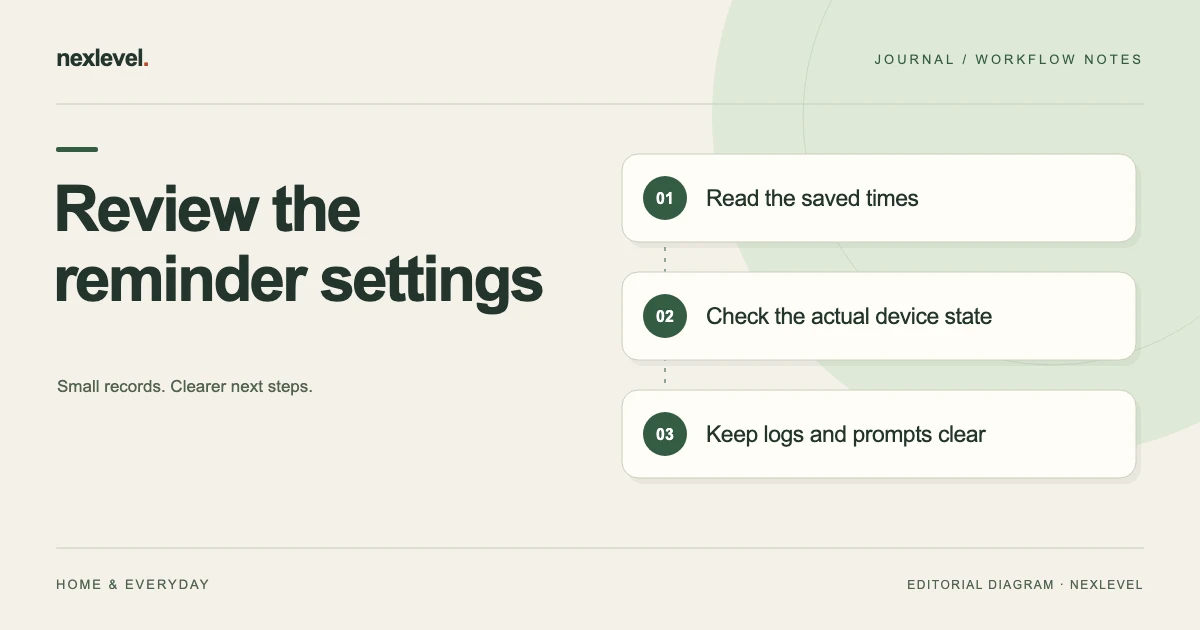
After a routine change, review the reminder times actually saved, the device's notification state and the next reminder displayed. Compare these with your intended changes rather than assuming opening the settings screen saved them. Keep the settings review separate from recorded drinks and health decisions.
Read back the settings that now apply
- State what changed and list the current saved times and local context.
- Write the intended changes separately, then read back the saved result.
- Inspect permission and the next-reminder view, recording any delivery check actually performed.
- Review quick-log preferences and separately maintained prompts without creating drink entries to document the edit.
Working fields:
Routine change | Earlier settings | Intended settings | Saved result | Permission | Next reminder observed | Pending check
Useful next steps: Use the reminder schedule template, Understand permission-off setup, Check reminders and saved entries separately.
Choose the scope of the review
Record what changed in the routine and which settings you want to inspect. A different work start, a new device, or a changed personal preference can raise different administrative questions.
Keep the purpose focused on the actual reminder workflow. This review does not decide a person’s health needs or interpret medical advice.
If personal targets or amounts are relevant to your own settings, establish them through the appropriate personal and professional guidance. The worksheet records the chosen setting without supplying that determination.
Read the current saved times
List the actual times and the relevant local context shown by the tool. A remembered schedule may differ from what is currently saved.
Keep a cutoff or note identifying which settings you inspected. If you later change a time, preserve enough context to explain why the next view differs.
Do not treat a notification seen on another day as proof of the present configuration. Inspect the actual current record through the supported workflow.
Separate reminders from logs
A reminder is a prompt. A saved log is an action recorded by the user through the actual app. They should not be presented as the same event.
Keep any manual correction or later entry identifiable where the tool supports it. A precise timestamp does not independently establish what happened outside the record.
The review can check whether the intended logging workflow is understandable without evaluating a person’s intake or health outcome.
Inspect notification permission separately
Check the actual app and device state through the supported route. A saved time and permission to deliver a notification are related but distinct settings.
QuenchPop’s current listing describes keeping the schedule saved when permission is off and providing a route to Settings when permission is denied. Inspect the actual current behavior rather than inferring it from an old prompt.
Keep the result readable: saved schedule checked, permission state inspected, and any intended action still pending or completed.
Use a settings-review worksheet
Useful fields include review purpose, current device or app context, saved times, notification state, intended change, actual change, relevant logging preference, source or test observation, and next check.
Keep the intended setting and the saved result in separate fields. This makes it easier to catch a change that was discussed but never actually recorded.
Add any limitation, such as an unavailable device or unperformed notification test. A useful review can state what remains unchecked.
Work through a fictional schedule change
Imagine a personal schedule with saved times of 08:00, 12:30, and 16:00. The person later chooses a different routine and wants to inspect a proposed set of 11:30, 14:30, and 17:00.
These are invented settings examples, not recommended drinking times. The worksheet records the old set, proposed set, and actual saved result after the person uses the supported controls.
The review does not create water-log entries merely because the schedule changed. A reminder setting and a recorded pour remain different records.
Check the actual next-reminder view
Inspect the tool’s current next-reminder information after saving the intended settings. Keep its meaning within the actual feature rather than treating it as a guarantee of every future delivery.
If the view differs from the intended plan, check the saved times and relevant device state before deciding what happened.
Record what you actually observed. Opening a settings screen, saving a preference, and seeing a notification are different observations.
Review duplicate-looking prompts
A prompt can come from a separate maintained reminder or another source. Identify the actual record behind it before changing unrelated settings.
If two saved times are unintended duplicates, use the supported editing workflow and inspect the result. Keep a separate personal calendar note distinguishable from the app schedule.
Do not assume one app edit changes every manually maintained copy. The review should identify which records you actually rely on.
Keep quick-log preferences deliberate
Inspect the saved quick-log choice if it is part of your routine. Keep its role as an input preference rather than a recommendation generated by the review.
Read the actual amount and unit when logging through the supported controls. A previous preference may not match the current action you intend to record.
This article supplies no target or quantity recommendation. Use appropriate guidance for personal health questions and keep the app’s organizational role clear.
Check the history view’s scope
Identify the period and information the current view displays. A limited history window is different from a claim about every event ever recorded.
QuenchPop’s current listing describes different history periods by plan. Check the actual available feature rather than assuming every screen or export covers a lifetime record.
Keep the source of any comparison readable. If the period changed, state that context before treating two trend views as directly comparable.
Keep personal trends in proportion
A trend or streak summarizes recorded actions under the tool’s actual method. It does not independently establish a health outcome or a complete record of real-world behavior.
Use the display to inspect your own records where useful, while preserving missing or uncertain information honestly.
Do not fill a gap merely to make the summary look continuous. Use the supported correction method when an actual recorded error needs attention.
Inspect cross-device context
If you use more than one supported device, identify the actual source of a setting or log when that matters. Inspect the tool’s current behavior rather than assuming all views update instantly.
A familiar screen on one device should not be the sole explanation of another device’s current notification state.
Keep access and data-sharing choices deliberate. The worksheet does not introduce an account requirement or a new synchronization feature.
Prepare a portable copy accurately
If an export is part of your process, open the actual output and check its period, units, event labels, and any relevant limitations.
A CSV can be useful without recreating the complete app or every device setting. Describe what the file actually contains.
Share only what you intend through the actual supported route. A personal review does not require distributing private logs to unrelated recipients.
Complete the fictional routine-change check
The person reviewing the example begins by recording the three times actually saved: 08:00, 12:30, and 16:00. They name the reason for the settings review and keep it separate from any judgment about personal health needs. The proposed 11:30, 14:30, and 17:00 set is a preference to inspect, not an instruction generated by this article.
After using the supported controls, they read the actual saved result. If one old time remains, the worksheet identifies the particular setting that still needs attention. It does not declare the whole review failed or assume that every proposed value was stored just because the settings screen was opened.
The next-reminder view is checked in its current context. The person records what the app displayed and what remains untested. A visual indicator can help inspect configuration, while the record should distinguish seeing that indicator from observing a notification at a later time.
The review then identifies any separate manually maintained prompt. A personal calendar note may need its own update. The worksheet records which copies were actually checked so a later duplicate prompt can be traced to its source rather than blamed automatically on the app.
The finished entry can state that settings were reviewed, the desired saved times were read back, and no water-log entries were created by the schedule edit. It does not certify future notification delivery or describe the schedule as medically suitable.
Check a saved schedule with permission off
A second fictional case starts with a saved schedule and notification permission unavailable. The source listing says QuenchPop keeps the schedule saved in that state. The reviewer uses the actual supported route to inspect the current settings and records the observed permission state.
If they intend to change the permission, that action remains separate from editing the times. The worksheet can show an intended device-setting check, an action actually performed, and a result actually observed. These labels prevent a discussion about settings from becoming a false statement that a notification was delivered.
After any change, inspect the relevant current app view through the supported workflow. Do not assume that old prompts are replayed or that every future event is guaranteed. This article makes no such claim about the operating system or the app.
Keep log actions independent. A missed or unavailable prompt should not automatically generate a saved pour in the record. The person can use the actual logging controls for an action they intend to record, with the relevant amount and unit checked in that context.
The result note remains administrative: saved schedule located, permission state checked, action and observation recorded, next question identified. It does not infer whether the person drank at a particular time or met a health need outside the app’s recorded workflow.
Compare history copies on the same period
A third fictional review compares two summaries that cover different periods. One selected view contains three recorded entries, while another broader selected source contains fourteen. Those are example record counts, not intake quantities or health targets.
The reviewer first identifies the period and source behind each number. A shorter display window can explain a different count without proving that records were duplicated, deleted, or missed. Keep the actual available feature and output scope visible.
Inspect an export if it is part of the chosen plan and workflow. Check the actual rows and their labels rather than assuming every source contains all settings, every device event, and a complete lifetime history.
If the periods genuinely match but the records differ, identify the specific entry or source question to investigate. A generic “history wrong” note gives little help for the next check. Keep the observation, proposed explanation, and supported correction distinguishable.
This comparison can improve the record without making a clinical conclusion. A count of saved actions describes the selected source and period. It does not establish a complete account of behavior outside the app, and it should not be used to judge an individual’s health.
A filled review summary can state: “Purpose: inspect reminder settings after a routine change. Saved times checked against the proposed set; actual permission state inspected through the supported route. Next-reminder view observed at the cutoff. Notification delivery test not recorded by this summary. No log entries created by the schedule edit. History comparison labels retain their source periods.” Add the actual date and any open question in your own record. The summary should describe the settings work performed, not imply a health result or a complete account of behavior outside the app.
Use QuenchPop as a personal organizer
QuenchPop records personal water-log actions and saved reminder settings. Its current listing describes local reminders, a next-reminder view, optional device logging, and Pro history or CSV features.
It does not make health claims or provide medical advice. Check current capabilities and plan details in the official QuenchPop App Store listing, and keep settings review separate from personal health decisions.