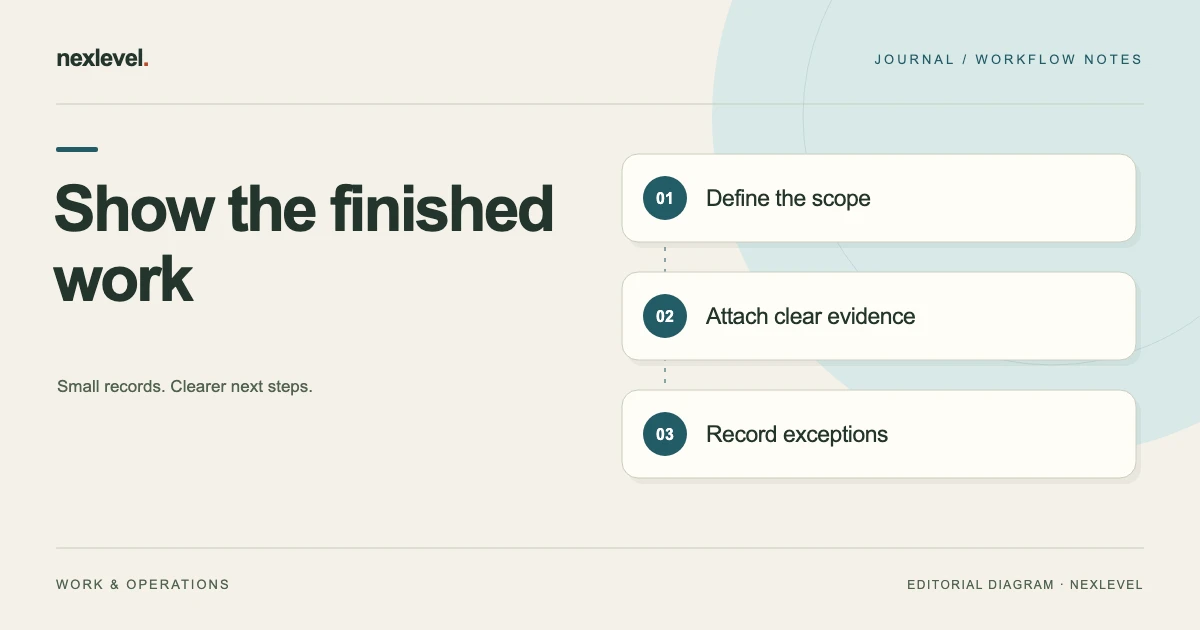
A work completion report should let someone who was not at the service visit understand what happened. The reader needs to identify the job, see what was completed, understand the photos, and know which issues still need a decision. A collection of images labeled “before” and “after” rarely answers all of those questions.
This work completion report template connects the visit, observations, performed work, evidence, exceptions, and follow-up. It is intended for technicians and small service businesses that need a clear handover record. It is not an invoice, a technical certification, or a substitute for any specific form your work requires.
Define the report’s purpose before collecting evidence
Choose the event the report covers: one visit, one completed task, or a defined phase of a larger job. A report titled “Project Complete” is misleading if it records only a preliminary visit. A precise title such as “Storage-room shelving adjustment, visit 2” gives the reader a useful boundary immediately.
Identify the customer, site, job reference, visit date, and person who prepared the report. Include a location within the site when several similar assets or rooms exist. Keep appointment dates separate from actual attendance dates so a rescheduled visit does not inherit the wrong chronology.
State the requested work briefly, with a reference to the relevant work order or agreed instruction. Then describe the work performed in a separate section. If the two differ, the reader should be able to see that difference without comparing scattered emails and photo captions.
Copy this work completion report structure
The template below works as a document outline or a set of fields in a service-report workspace. Keep the headings stable across jobs so returning customers can find the same information quickly.
- Report identity: report number, version, issue date, preparer, job reference, customer, and site.
- Visit scope: attendance date, relevant area or asset, requested work, and referenced instructions.
- Initial observations: what was visible or reported at the start, with attributed sources.
- Work completed: specific activities, materials used where relevant, and any recorded checks.
- Evidence: labeled photos or documents linked to the relevant activity or observation.
- Exceptions: incomplete work, access limitations, unavailable information, and unresolved conditions.
- Follow-up: recommended action, responsible person or decision owner, and agreed next step.
- Customer acknowledgment: what information was presented, who acknowledged it, and any note or declined acknowledgment.
Use a completion statement that matches the scope. “The listed shelf adjustments were completed during this visit; the replacement panel remains outstanding” is more useful than a single green checkmark. It preserves both the achievement and its limit.
A fictional worked example: a shelving service visit
Suppose a small service company attends a storage room to adjust two shelving units and replace a damaged panel. Report SR-042, version 1, records the customer and site, identifies units S1 and S2, and links the instruction received before attendance. The fictional example illustrates documentation, not a method for carrying out shelving work.
The initial observations say the panel on S2 is visibly damaged and that the relevant area of S1 was accessible on arrival. A photo is attached to each observation. The report does not claim to assess concealed conditions or the condition of other storage equipment.
The completed-work section lists the adjustments actually performed on S1 and S2. Materials are recorded against the activity that used them. The replacement panel was not available, so that item appears under exceptions rather than being quietly omitted from the report.
The follow-up section says the service coordinator will confirm panel availability and propose a return visit. The customer is asked to acknowledge the service information shown, including the outstanding panel. That acknowledgment does not change the status of the incomplete work or turn the record into a qualified electronic signature.
Distinguish observation, action, and outcome
These three categories answer different questions. An observation describes what someone saw or was told. An action describes what someone did. An outcome describes the recorded result. Combining all three in a phrase such as “fixed problem” makes the report difficult to assess later.
For example, “Customer reported drawer difficult to open” is an attributed observation. “Adjusted the identified drawer during the visit” is an activity. “Drawer opened and closed during the documented check” describes a limited observed outcome. None of these statements should silently expand into a guarantee about future performance.
Use precise verbs and identify the object. “Checked equipment” leaves too much unstated. If the work requires a specific test, inspection, qualification, or certificate, use the required process and documents. A general completion report can reference them, but it should not impersonate them.
When information comes from another person, identify that source. “Site contact advised the issue began last week” preserves the distinction between a reported history and the technician’s direct observation. This makes the report more useful without making it unnecessarily argumentative.
Make each photo explain something
Take or select photos for a defined purpose: identifying the asset, showing a visible starting condition, documenting an activity’s result, or explaining an exception. A close-up can show a detail while failing to identify where that detail belongs. Pair it with enough context for the intended reader.
Give each selected image a reference and a caption. A useful caption might read, “P03: Unit S2, right-hand panel, visible damage recorded before work.” The related exception can cite P03. Avoid captions that claim a photograph proves more than it shows, such as a concealed repair or an unrecorded test.
For a before-and-after pair, identify the same subject and explain any difference in viewpoint. A different angle or lighting can make comparison difficult. If you do not have a meaningful before image, say so rather than attaching an unrelated image to fill the slot.
Remove unrelated images from the shared report. Customer documents, bystanders, screens, keys, and other personal or security-sensitive details may appear unintentionally. Review the actual exported report, not just the image thumbnails, before choosing a share destination.
Record materials and quantities in context
List materials when they help explain the work performed or support the next visit. Include the item’s description and relevant quantity or identifier. A report full of internal stock codes is less helpful to a customer unless those codes are accompanied by readable descriptions.
Distinguish materials installed, materials supplied but not installed, and items still required. In the fictional shelving example, an unavailable replacement panel belongs in outstanding work. It should not appear in an installed-materials list simply because it was part of the original request.
Keep cost documents separate when the report is not intended to bill the customer. You can reference a quotation, purchase order, or invoice without copying amounts into every report version. If pricing does appear, label its source and status so an estimate is not mistaken for a final invoice.
Do not add technical identifiers you cannot verify. If a label is unreadable, note that limit and preserve a useful photo when appropriate. A guessed part number can mislead the next person ordering a replacement.
Treat exceptions as part of the result
An exception describes a meaningful limit: work not performed, an area not accessed, a missing part, an interrupted activity, or an issue outside the visit’s scope. Include it even when the rest of the visit went well. The report becomes more dependable when incomplete work stays visible.
For each exception, state its practical consequence and next step. “Access unavailable to rear storage area; listed work there was not performed; coordinator to arrange access” gives the recipient something to resolve. “Access issue” does not.
Separate a recommendation from an authorized task. If you suggest further assessment, the report should not imply the customer has already approved or scheduled it. Record the decision needed and who is expected to respond. Use an agreed date when one exists; otherwise label the date as a proposed follow-up.
When an exception is resolved later, create a linked follow-up record or a clearly versioned correction. Do not erase the fact that it was outstanding at the end of the original visit. The chronology may be the most useful part of the history.
Use customer acknowledgment with accurate wording
Explain what the person is acknowledging before collecting a typed name or drawn acknowledgment. In a general service record, that might be review of the displayed visit details and listed exceptions. It should not quietly become acceptance of new terms, a technical certification, or a statement that every requested activity was completed.
Identify the person and their stated relationship to the site when relevant. Do not assume a person present has authority for every commercial decision. If acknowledgment is unavailable or declined, record that state accurately and follow your organization’s process for delivering the report.
Keep the acknowledgment connected to the report version presented. If you materially change the report afterward, the old acknowledgment should not appear to cover new wording. The exact workflow depends on your tools, but the record should make the relationship understandable.
Review, issue, and preserve the report version
Before sharing, compare the report with the job record. Confirm customer and site identity, actual visit date, scope, photo captions, completed items, outstanding items, and recipient. Check that no draft instruction or internal-only note accidentally entered the customer copy.
Open the exported PDF and inspect the pages. Look for clipped captions, blank images, unreadable small text, or an exception separated from the item it qualifies. A successful export message says a file was created; it does not tell you whether the reader can use it.
Use a stable report reference and version. Preserve the issued file and note its issue date. If a correction is needed, identify the new version and the correction clearly. This avoids a series of files with identical names but different contents circulating without explanation.
A report can be ready to share before connectivity is available. Keep the prepared file and the sharing status distinct. “Prepared” is not “delivered,” and an offline workflow should not imply that a customer has already received the document.
Check a report against a real retrieval question
Before adopting the template for every visit, ask a colleague to use a sample report to answer three questions: which task was completed, what remained outstanding, and which photo supports the main observation? If they have to call the preparer for the answer, improve the labels or structure rather than simply adding more pages.
Repeat the check with a report containing an exception. A perfectly straightforward job may hide weaknesses in the template. A missing part, an inaccessible area, or an incomplete activity tests whether the report preserves limits clearly enough for the next person to act.
Keep the report readable without internal shorthand. Expand an unfamiliar asset code on first use and explain unusual abbreviations. The goal is a record that remains understandable after the visit is no longer fresh, including to a customer or replacement technician who was not part of the original conversation.
Use ProofLedger to keep evidence with the job
ProofLedger brings job details, labeled before-and-after photos, completed work, materials, exceptions, and recommendations into a completion-report workflow. Its official listing describes versioned PDF reports, customer acknowledgment, a local job archive, and core use without a network connection.
View ProofLedger on the App Store for current features, access, and compatibility. The listing explicitly distinguishes customer acknowledgment from a qualified electronic signature. Review the report and choose its destination yourself; the useful record is the one whose statements match the work and evidence.
If a requested addition changes what the visit is meant to cover, use a separate revision request record to clarify that decision. Keep the eventual completion report focused on what happened rather than reconstructing the entire negotiation.
Sources and example scope
Product claims were checked against the official ProofLedger listing and product page. The service company, shelving job, identifiers, and report entries are fictional. The outline is an original recordkeeping example and does not establish regulatory compliance, professional certification, or contractual acceptance.